


Despite sci-fi visions of how communication would look in the 21st century, email is still king. You can't function without it, as every website, app, social media, and digital ID depends on it.
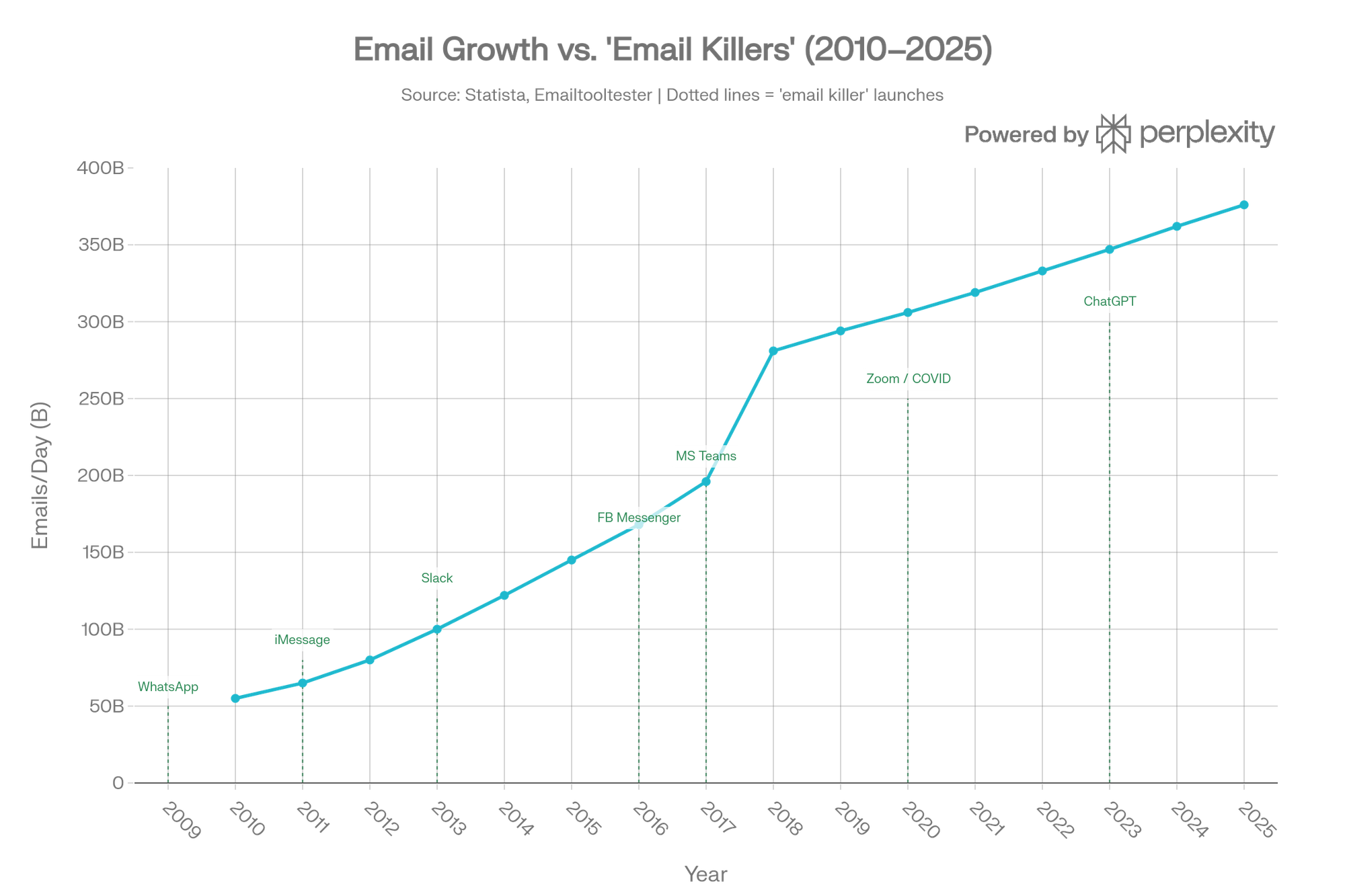
We spent 2-5 hours per day in the inbox because it holds our:
- work threads with infinite CCs,
- PDF attachments of vital documents,
- doctor's appointments,
- flight and hotel bookings,
- concert tickets,
- high school love letters,
- family arrangements,
- useless newsletters,
- and gazillion other things.
A reliable email inbox is even more crucial for us, digital nomads. We switch our mobile numbers as often as our destinations. And relying on Facebook, Apple, Microsoft, or other Single Sign-On (SSO) can lock you out because of false positive security measures that look at our frequent country changes.
Therefore, I'm on an ongoing pursuit for a great email client.
The case for iCloud Mail
My article about iCloud Mail remains the most popular article on nerdontour.net.
 Piotrek Bodera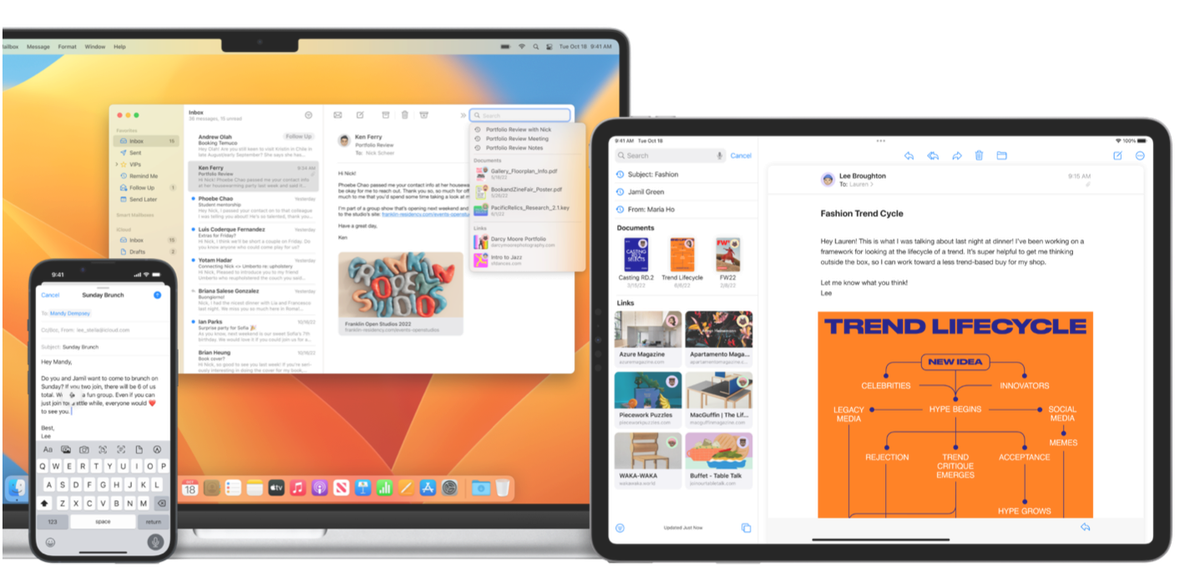
Several factors contribute to it:
- Apple devices are popular, and iCloud Mail is their native and straightforward solution.
- Basic features are free, and with 0.99 USD per month, users can connect their custom domains with 50 GB of storage.
- Privacy options on the Apple platform are better than in Gmail.
If you're looking for an inexpensive and familiar email client, then iCloud Mail is still a good choice. However, in May 2025, I switched to Hey.com because the standard email flow is broken.
Every email client is stuck in the 1990s
The hierarchical, tree-like structure of files within subfolders within folders stems from operating systems. And they took it from how offices or libraries organize data. Proper organization of the path to every bit of information was required, and email inboxes followed this trend.
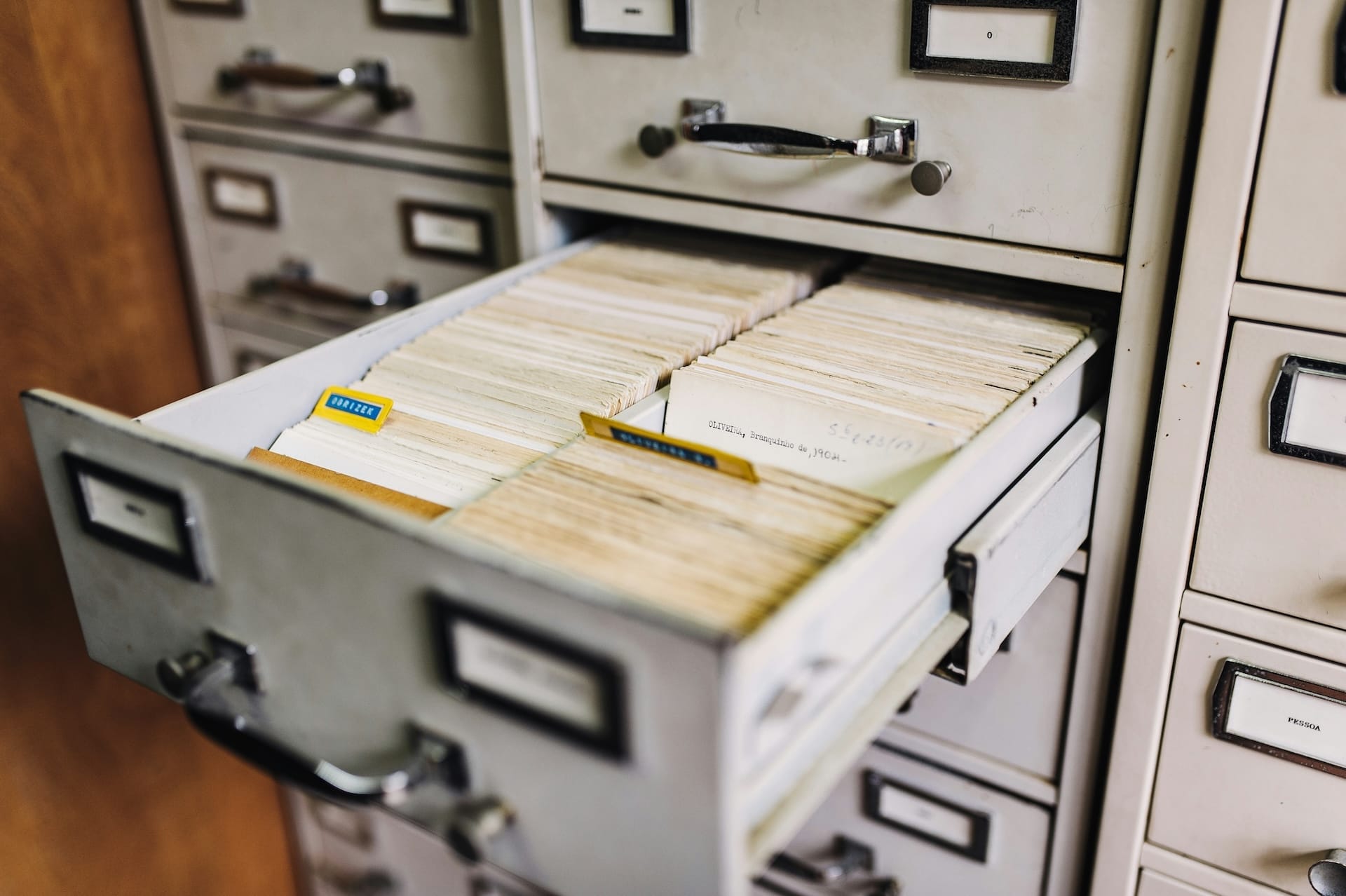
I used to have email folders for bank statements, newsletters, funny images from friends, etc. The interface featured multiple columns:
- Apps
- Folders (with subfolders)
- List of emails
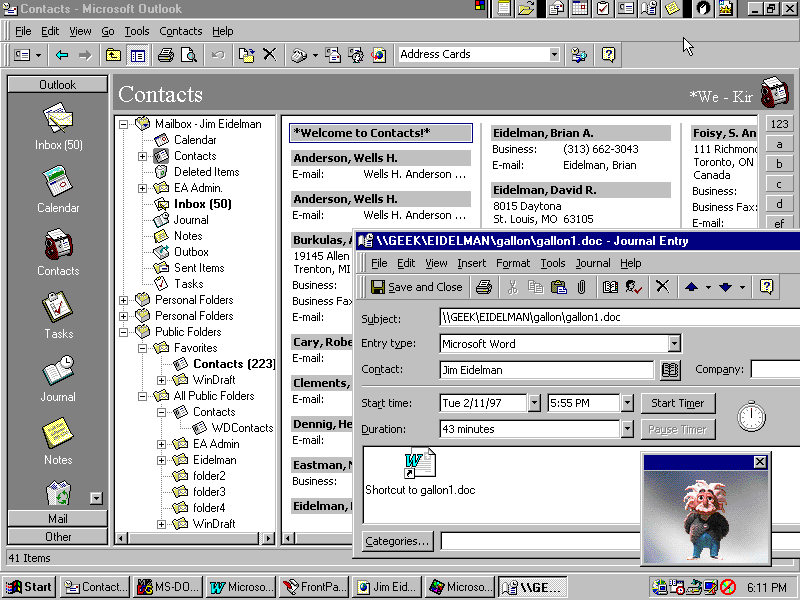
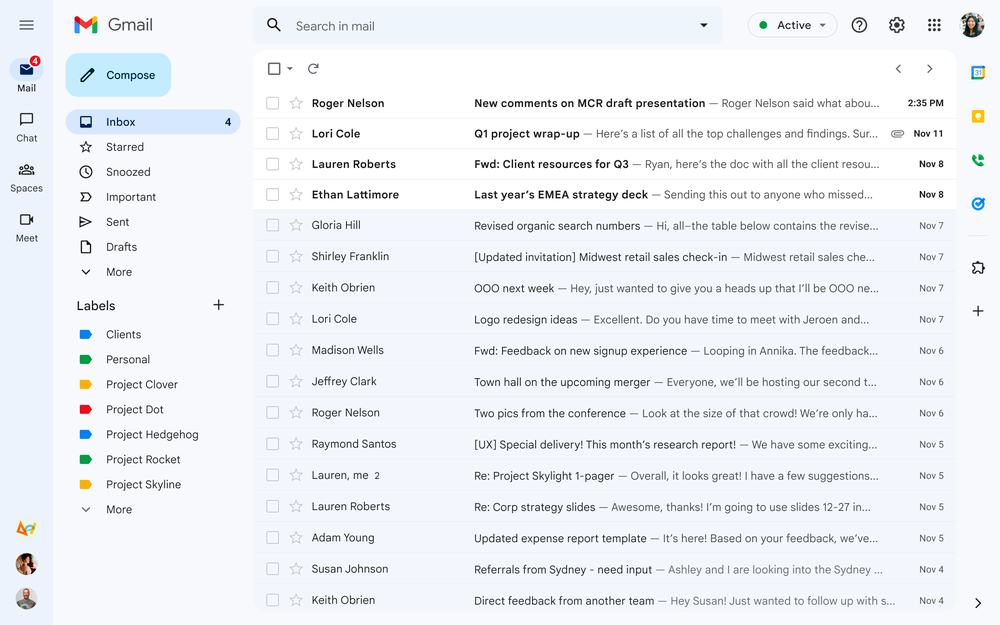
The email interface has seen no change, despite nearly three decades. While everything around the email culture has changed.
The to-do list that anyone can populate
If you have an email inbox, accept the fact that it's a to-do list. The type of to-do list where anyone can add more tasks. Every cold outreach, receipt, or business opportunity is one line added there by someone, or a machine.
That's why the traditional multi-column view is inefficient. Dragging every email into separate folders, or even creating automated filters (rules) is complex, error-prone, and time-consuming. Something you feel even more when emails are piling up after a holiday break.
The one column of Inbox by Gmail
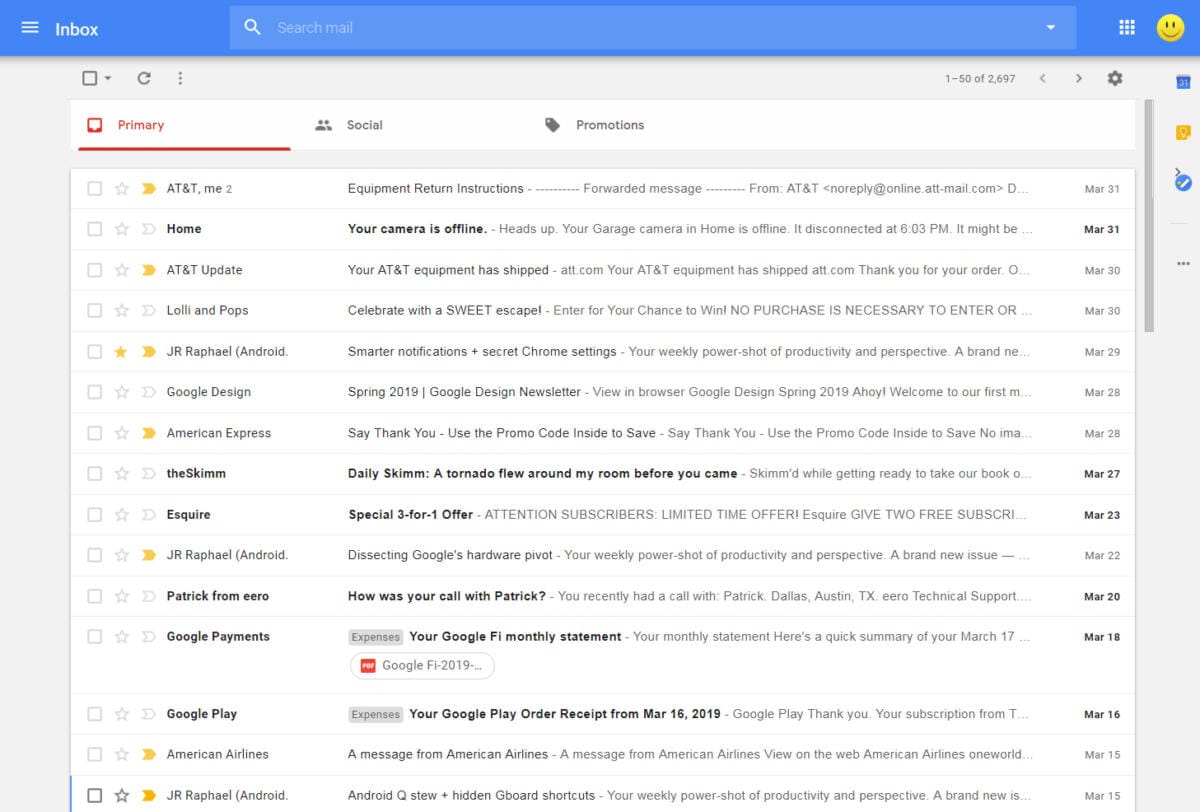
In 2015, I felt eager to visit inbox.gmail.com. I was very familiar with Gmail, but I welcomed Inbox with open arms. It displayed each email as a task in a single column.
 Contributors to Wikimedia projects
Simplified interface sped up email management. Marking messages as read, archiving, writing quick replies, or pinning important threads to the top, were very helpful features. You could even create additional notes in between the emails, which I used a lot.
But Google, being Google, in 2018 added Inbox to their long list of killed products. Despite popular demand. After all those years, some users love Inbox so much that they have preserved it as a web extension that modifies your Gmail interface.
 team-inbox
That's not enough for me. Moreover, I moved away from Gmail and keep a healthy distance from Google products after I learned about surveillance capitalism.
Hey there, Inbox incarnation!
DHH and Jason Fried from 37signals admit many email clients inspired Hey. On the surface, it resembles Inbox by Gmail, as it's also one column, but I'm glad that they introduced a lot of improvements.
Back in 2020, when Hey launched, I was sceptical to migrate my inbox. It seemed like a pilot program, so I waited until Hey offered more improvements. But my Japan trip in May 2025 was a breaking point, as I realized I spent too much time moving messages, improving iCloud Mail rules (filters), flagging spam, etc. So, regardless of busy travel schedule, I moved my primary inbox to Hey.
Speed matters
Back in the day, Gmail popularized Ajax, which made their web app an email client inside a browser. However, they're now considered a bloated single-page application. It requires loading multiple megabytes of data on the initial launch plus 100MB up to 2 GB of RAM. And even more if you use Chat, extensions, etc. And because Google earns more money the more it knows about you, Gmail has many ad-tech trackers. Which slows down the experience even more.
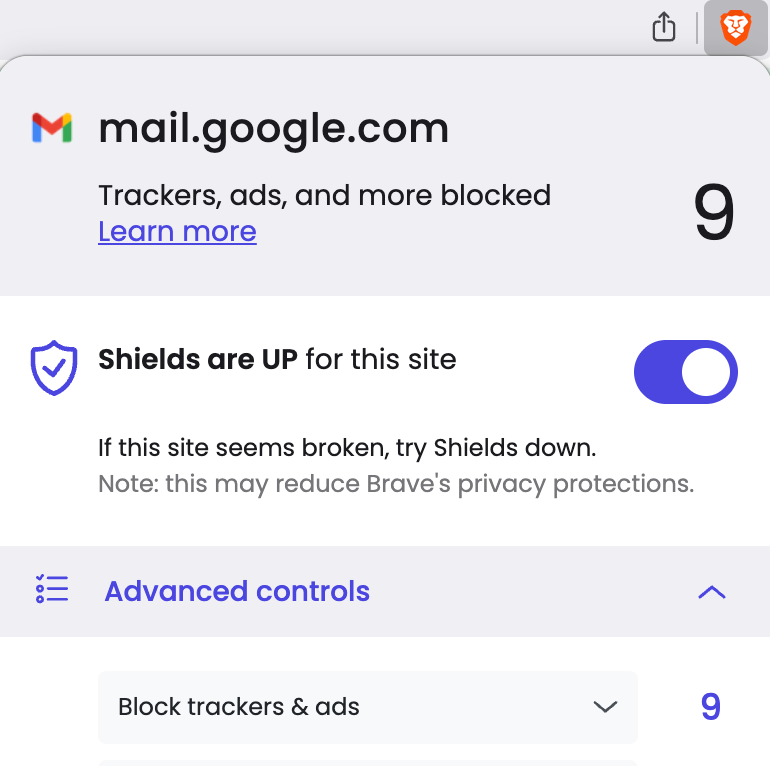
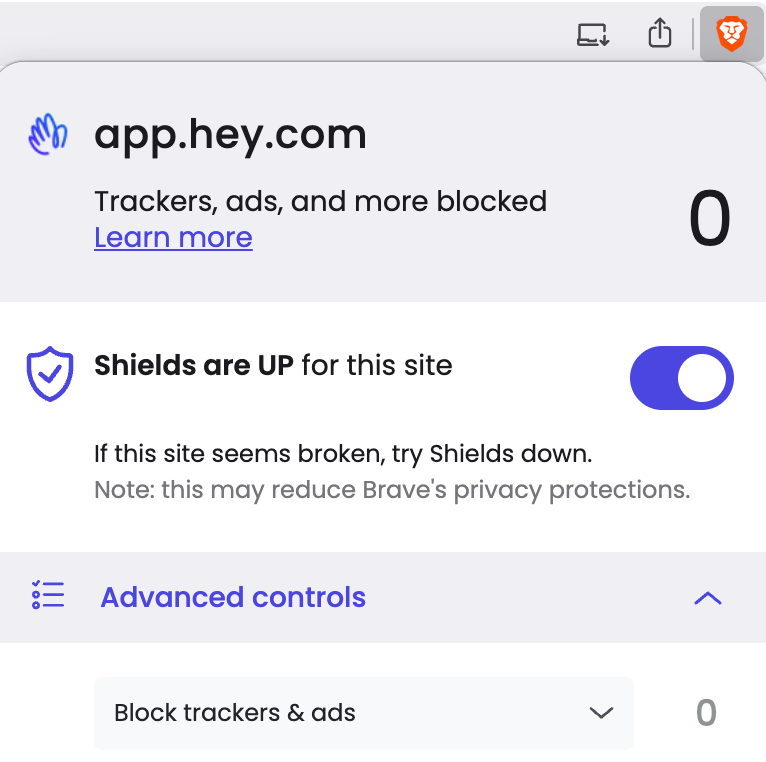
Hey, built with DHH's own Ruby on Rails, has an initial load of only 50–70 KB. So it's orders of magnitude faster and has no trackers. Unsuprisingly, it also blocks email trackers. Similarly to Apple Mail and Proton Mail.
In the iCloud Mail article, I emphasized that a smooth and uninterrupted email experience is crucial. That's why Gmail and Proton Mail were too slow for me. Especially when running a business, I need to stay on top of things. Lightweight code and fast loading are crucial in typical digital nomad scenarios. On airports with underperforming Wi-Fi or on the road when reception is spotty. We need to have a reliable tool. Therefore, I'm thrilled that Hey delivers the speed.
Effective screening
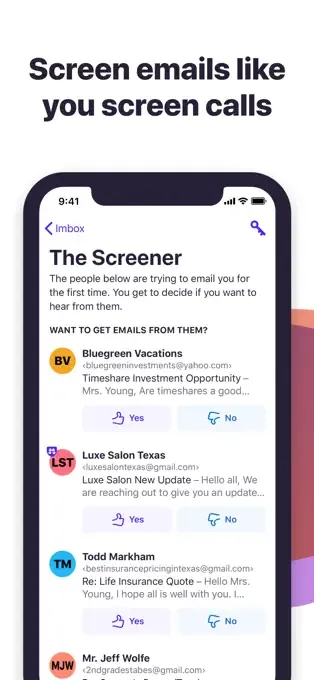
Wobbling light cyan pill is the first thing I see when opening Hey. And it's the first distinct feature. Everyone should be in control of who can access our inboxes, so it's surprising that Gmail, Outlook, and other major email providers don't offer screening.
I'm annoyed by cold calls in any form. Full-time nomading means that I'm subject to varying privacy protection schemes. In the EU, it's much easier to opt-out from unwanted calls, emails, messages, but everywhere else it's a mixed bag. Indonesia and China are, in my experience, the worst to bombard users with spam.
Unwanted offers mixed with legitimate first-time senders is the key problem. Every email provider has integrated a spam filter. So we need to monitor the spam folder regularly for false positives. But Hey, besides filtering spam, offers another step.
Screening receives first-time senders. Based on the email preview, I can:
- Approve the sender and optionally send all future messages to the Feed or Paper trail.
- Disapprove the sender if it's a legitimate context, but I don't aspire to be bothered.
- Mark it as spam.
Speakeasy code to be let in automatically
Occasionally, I may want to add to an approved list some people. The Speakeasy code works even if I don't know their email address yet. Useful if I meet someone in person at a conference or meetup. I generate a short keyword in my Hey account, and if the person includes it in the subject, their message will be automatically approved by my Screening.
Triage instead of rules
Fast loading interface, navigating the inbox, and writing messages are, to me, standard features. Yet, managing the inflow is the most crucial feature of modern email clients.
All of them offer automatic categorization, such as Promotions, Social, Updates, Finance, Purchases, Travel, etc. However, in my experience, it's unreliable due to:
- emails from airlines, venues, tourist attractions, that were badly designed,
- confusing and inconsistent sending addresses,
- multilingual variations.
That's why I never used these automatic bundles in Gmail nor in iCloud Mail. An alternative is to create rules (filters). But in the long run, editing, debugging, and overall maintenance take too much effort. Especially because you're forced to deal with rules on the desktop. And if you don't, your mobile app is overflowing. More on that later.
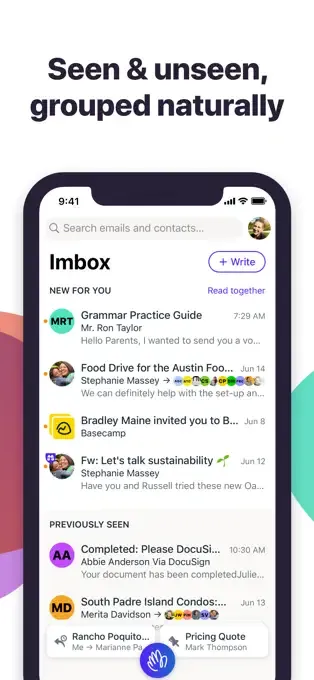
Here comes Hey's differentiator. All incoming emails undergo triage. They can be only in the:
- Imbox — inbox for important conversations like threads with clients, friends, family, hence spelling with "m".
- Feed — like social media or an RSS feed, where all newsletters go.
- Paper trail — everything else that doesn't need attention but needs to be preserved (like receipts, tickets, invoices, reports, privacy notifications, etc.).
Because it's so different to the traditional email clients, Hey guides you via a tutorial on the first dozen of your emails. I admit it took me a while to adjust. For years I relied on my custom sorting where I knew that bank statements would go to a specific folder. I struggled to assign many message types to the correct Hey category.
Fortunately, after a month or two, I learned the Hey-way. I now recognize that this constraint represents a solid design. It results in less time spent in the inbox, which is what I wanted.
Labels instead of folders
Instead of the ever-increasing complexity of a myriad tree structure of folders, I now split all emails into three predefined places. And while all my bills go to Paper trail, every month I need to review company invoices and send them over to my accountant.
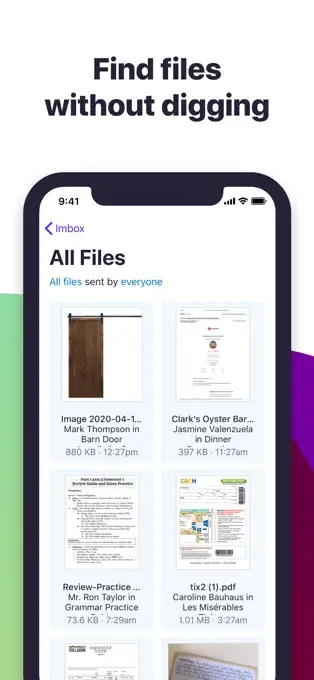
Hey provides labels that automatically sort emails from specific senders. Now, when I get an invoice from Zapier, Apple, or another provider, they are all labeled. However, what's super convenient is that opening the label section shows the list of all the attachments in the first row. Speeding up the downloading process, as the attached files are what I'm after in this case.
Bobble up instead of stars/flags
Where to put important emails? Professionals universally face this dilemma. Some messages demand more work, research, or extended written responses. To ensure we come back to it, a distinct label, icon, or folder is useful.
I never developed a habit of using stars (in Gmail) or flags (in iCloud Mail). That's because both Google and Apple leave it up to the user to figure out the tagging method. Regardless of one's discipline, it's another overhead on an already long list of tasks to keep the inbox neat.
Hey displays no icons for important emails. Instead, there's the Bubble Up feature. Similar to pinning emails to the top of the screen in Inbox by Gmail. Prioritizing crucial matters means they deserve a leading position. Honestly, seeing the same message every time I open Hey motivates me to deal with it much more than the starred pile.
Scrolling to "New For You," which displays genuine new emails, requires considerable time when many "Bubble Upped" messages are present. That serves well, motivating me to cut down vital messages.
Furthermore, the Bubble Up permits future scheduling for no response, or immediate activation. I use the last option most often. And once I reply to the message, I can send and pop it. So, I burst the bubble and remove the thread from the top of my inbox.
Set aside instead of "Where was that email?"
Since Hey lacks a folder tree structure, it displays all emails in a single column. This means a lot of scrolling. Despite the quick search option at the top, some emails require immediate attention. In my case, these can be flight tickets and concert or event confirmations. Presentation of documentation that grants access.
To address that, Hey allows me to set them aside. It pins emails to the bottom of the screen. There's no need to scroll or search to access them, as the set-aside emails appear on an upper layer above everything else.
I use it occasionally. Hey's offline functionality is very limited. And since Internet connectivity at airports and large events can be spotty, I prefer to keep backups of tickets and QR codes stored on my phone.
"Power through new" instead of shoving email piles
This is the most satisfying feature, where the one-column view excels. All other email clients are distracting attention. Because you never look at one email. When 20 new messages arrive, you're tempted to click to the most "shiny" one. Depending on your mood and workload, the email flow looks like this:
- OMG, so many emails!
- Let me just peek into this newsletter, and then I'll deal with my work messages.
- Wow, there's a 50% off promo for this course I wanted. Let me just check that.
- Oh no, 5 more new work emails.
- One is titled URGENT, I better read it.
- It mentions the conversation from the other email; I need to find it.
- While searching for the thread, I discovered a heartful message from a high school friend. I'll quickly re-read it.
- Colleague prompted me on Slack to reply to their message. It's short; I'll do it now.
- Where was that other important message I started my reply to?
- Hours pass and the email pile doesn't decrease at all.
I lost way too much time doing this, and I bet so did you.
Hey-way email flow
- Let's power through all the new emails.
- The urgent message asks for a specific asset. I write a quick reply without switching the view.
- A bunch of error notifications. I bobble them all up to deal with it during my prearranged time block.
- Flight ticket confirmations, marked as seen.
- Done in no time.
Note that some of the filtering happened prior while screening. My message view includes only those from authentic sources. The regular receipts already went to Paper Trial, and newsletter issues are in the Feed. Since any flight updates are crucial for my travel plans, I deliberately keep them in my Imbox.
In other words, the power through is an excellent way to focus on dealing with important messages. The one-column view is a powerful constraint because I can rapidly reply or decide what to do with each message. It's essentially a to-do list without distractions because nothing else is in the view.
Keyboard shortcuts
The process is even faster with keyboard shortcuts. Yes, Gmail or iCloud Mail also have them. But since they don't offer an equivalent to the Power Through feature, it doesn't have the same impact. Honestly, now I'm eager when I see a bunch of new emails. For most, I click "E" to mark them as seen. Occasionally I press "R" for a quick reply on the right side of the message. Finally, if it's something requiring more work, I bubble it up with "Z".
Other than that, I use keys 1, 2, and 3 to switch between Imbox, Feed, and Paper trail. Oh, and my favorite is for sure "T" to put messages into the trash.
Bundling instead of endless notices
Another thoughtful feature addresses avid senders. Some banks, services, or email dripping chains send you a dozen messages every day. They're not spam, but they're also not essential to occupy 12 out of 20 rows of fresh email.
Hey allows you to display messages from any sender bundled up. I still receive them; a single row now shows a compiled update. Giving me the option to check if there's anything important, or to mark it as read. Neat and practical.
Merging instead of splitting threads
Do you know someone who replies to emails by always creating a new message?
Or did you buy a new gadget, and the shop sent 10 messages for this one transaction?
I experienced it. Therefore, I'm glad that Hey allows merging threads. You need to create a custom method to remember that two or more emails are related in Gmail or iCloud Mail. In Hey I just mark which messages belong together and glue them forever. Which creates one consistent column with all relevant details.
Permanent Inbox Zero instead of thousands of unread messages
Every app is fighting to get our attention. Hey's meticulous design gets rid of that overused Silicon Valley playbook, which is refreshing. Because what's the point of showing that there are thousands of unread messages?
It's a conscious design choice of DHH and his team that aligns with the Inbox Zero concept. I, as well, strive to clear the daily queue of emails. Showing a red bobble with a big number is anxiety-inducing. And it doesn't reduce it if the bobble is light blue, as with the Apple Mail app. Instead of obsessing over the number, I now power through my daily deliveries, as described above. I never know, never count, and don't care about the number.
Effective triage, and then powering through, is what matters.
Set mobile notifications only for crucial replies
Similar bold design decisions Hey made in terms of mobile notifications. Each day, useless nudges bombard billions of Gmail, iCloud Mail, and Outlook users' phones. The "URGENT" message from colleagues (with all caps), mixed with ad-filled newsletters, and AI filtering mistakenly prioritizing random cold calls is common. Double that if you maintain separate personal and work inboxes.
Hey is silent by default. Many extra alerts seem unnecessary, wouldn't you agree? Especially since we already have a daily habit of checking our inboxes. Seeing these nudges first thing in the morning is, as with the unread counter, anxiety-inducing.
Instead, if I await a reply to a specific message, I enable notifications. This is brilliant! Now, when I'm on the road but need a reply from a hotel or airline, the notification will pop-up on my phone. While all other emails sit silently, awaiting when I choose to attend to them.
Hey is mobile; Gmail, Outlook, iCloud Mail, Proton are not
At last, we arrive at the most significant Hey advantage: the mobile app. Which, drumroll please, works the same as the web client!
How come trillion-dollar companies like Google, Microsoft, and Apple offer limited email apps? They have dealt with email for decades, have enormous resources, heck, their employees most likely use their own email infrastructure, yet the mobile apps are subpar.
This is most evident with rules/filters. Every desktop email client offers advanced filtering, e.g. using two or more factors like subject and sender. Yet, every mobile client offers no or very limited filtering. I mentioned it in my iCloud Mail article. And because filtering required my MacBook running, it pushed me to look for other solutions, like Hey.
The second aspect is in the UX. Most users use phones in portrait mode (vertically), so Gmail/Outlook/iCloud Mail all recreate their desktop multi-column email clients into a one-column view on mobile. The default column is the same cluttered list of all messages attacking your inbox. Sliding left reveals the column with folders/apps, and sliding to the right shows the message content. But where are the advanced settings?
Mobile Hey
After my frustration with Gmail, Proton, and Apple Mail mobile apps, I adore Hey. Their app doesn't just mimic the desktop UI. It provides the same scope of features!
It's another example of 37signals' unconventional approach. And I'm delighted to handle emails on my iPhone finally as efficiently as I do on my MacBook.
The one-column view operates smoothly on smartphones. I screen, triage, power through and reply in the same way as described above. And the app works as fast as the desktop version.
Although offline mode exists, it has limitations. Some recent emails are present, but I can't do much managing. Still, it's not a big deal for me, as I'm rarely offline.
Flexible storage instead of Big Tech premium fees
When Gmail launched on April 1, 2005, it had an ever-increasing counter expanding by fractions of a megabyte in real time. It was a clever marketing technique for user acquisition. They removed it around 2012–2013 when the 15 GB storage per user was set. By introducing new products like Google Drive, Photos, and unifying cloud storage they turn free users into paying customers.
Moreover, the lack of advanced email management on mobile, the absence of email screening, and the current push towards AI features show Big Tech's business focus. They earn more the more emails you have. In other words, email hosting providers have a perverse relationship with everyone who bombards your inbox. It's in their interest to accept everything because the bigger the email storage, the more they can charge. Introducing AI allows to increase rates even more.
100 GB Hey storage
Once again, Hey is different and delivers Gmail's promise from the past: infinite storage. The official documentation states a limit of 100 GB per user. However, there's no used storage counter. Similarly, Hey does not track how much space my emails occupy, just as it doesn't track message counts. And it doesn't bother with that data its users.
That's because Hey is the only email provider I'm aware of that doesn't charge by storage. It doesn't even offer storage upgrades! While it's written that Hey support may reach out to you if you come close to the threshold, I wasn't able to find public user reports that experienced it.
To verify if the 100 GB per user is a realistic allowance, I made this calculation. Over a 50-year email lifetime (ages 15–65), a person receives about 2.2 million emails totaling ~158 GB. What they actually store varies enormously by habit:
- 121 emails/day received on average
- 75 KB average email file size
- 50 years of active email use (ages ~15–65)
- Total received with no deletion: ~2.2 million emails / ~158 GB
| User Type | Retention | Emails Stored | GB Stored |
|---|---|---|---|
| Light user | ~10% | ~220,800 | ~15.8 GB |
| Average user | ~25% | ~552,000 | ~39.5 GB |
| Heavy user | ~60% | ~1,325,000 | ~94.8 GB |
| Hoarder | ~100% | ~2,208,000 | ~157.9 GB |
Therefore, indeed, the 100 GB email inbox should be sufficient for my entire lifetime.
Recycling instead of endless archiving
To prevent inboxes from bloating, Hey offers Recycling. By default, the Feed, the place where all hefty newsletters land, deletes messages older than 90 days. Because who needs to re-read a newsletter from 2 months ago?
You can turn it off or change the period to 30 days or 2 years. The Recycling feature allows you to select any sender. In my case, I keep the WordPress plugin update notifications and other system reports for 2 years. Anything older, I treat as waste. The Recycling feature allows me to automate that. Even if Hey's generous storage allows me to archive everything forever.
That simple but effective method is akin to the auto-deletion of emails in the trash. Every email client I know deletes messages after 30-days. How come only Hey defaults to moving all newsletters to trash?
That's again the case of incentives. Most email platforms incentives users to keep everything forever, just in case. Hey incentives to set Recycling to auto-delete unnecessary messages.
No file size limit instead of 20/25 MB attachments
Sending email attachments is an everlasting challenge. Traditionally, email clients expect MIME attachments, but each platform arbitrarily sets the limit for attachment files:
- Gmail/Proton Mail: one message can't exceed 25 MB
- Outlook/iCloud Mail: one message can't exceed 20 MB
Some providers like the Polish "Wirtualna Polska" offer email attachments up to 100 MB. Yet, I strongly discourage from using this platform. They employ dark patterns, like extorting fees from email senders to show messages in your inbox.
 Al Iverson
Back when I was working as a tour manager, sending trip-related documents was a colossal headache. Because of these arbitrary set limits, I needed to decrease the size of each file and send consecutive emails, one small attachment at a time. Be aware that each provider and each company may have policies of not accepting messages bigger than 10 MB or 5 MB. Since these policies aren't always public, it creates an enormous mess.
Cloud storage is bundled with many email platforms today, so they upload your files to your cloud and then share them as a link when you want to send someone files over the threshold. Yet it creates additional issues:
- MIME attachments and links to your cloud store files in separate locations. Managing them adds more complexity.
- Cloud storage link sharing means managing the scope of access (public, for a specific domain, or specific email addresses) which again adds more complexity.
- Any changes to your cloud may remove access to files for the email recipient.
Hey unlimited and straightforward attachments
With Hey I just drop the attachment in the message. I don't need to care about:
- each file size threshold,
- cumulative size of the message,
- recipient's inbox accepted file size policy,
- granting specific access,
- managing my cloud and sent email storages.
In Hey each file becomes a link. It doesn't send MIME attachments, simplifying the entire process. And eliminating the unnecessary juggling of attachments.
It uses the generous 100 GB of storage per account mentioned earlier. In reality, no quota counter exists. You can send and receive as many and as extensive files as you wish, without worrying that you're running out of space. In that regard, at the time of publishing this article, there are no known cases of users reporting hitting the quota limit. But like with any online platform, account suspension can occur if you abuse this policy.
Attachments stored forever
Sending attached documents to a colleague/contractor is a common email exchange scenario for billions of users. So I'm glad that Hey's attachment handling is 10x better than the competition. Still, I need to remain vigilant with this approach. Because Hey's attachment download links are:
- permanent,
- not monitored,
- can be shared further.
Therefore, I should only attach files that don't need to be revoked in the future. So for more advanced collaboration, I recommend sharing access via a dedicated cloud storage service (e.g. Dropbox, Proton Drive, etc.) or via end-to-end encrypted temporary sharing like Wormhole.app. After uploading, you can easily share a file's link via regular email.
Unlimited extensions as email aliases
Gmail popularized "subaddressing" with the plus symbol, e.g. name+shop@gmail.com. iCloud Mail offers the "hide my email" feature that generates a random email address with forwarding to my inbox. It's especially useful when I:
- want to subscribe to a newsletter,
- sign up to a new app/platform,
- register in an online store or institution.
Many sites reject plus signs, which prevents the use of Gmail subaddressing. Google Workspace offers only 30 aliases per account, or you must deal with complex admin-level Recipient Address Mapping. Apple's "hide my email" format, e.g. abc123def@privaterelay.appleid.com doesn't allow adjusting the aliases nor the domain. Therefore, these options limit our choices.
Again, I like Hey's straightforward way of solving aliases. They are called extensions, and I can create as many of them as possible.
Sending a message to one of them makes the extension apparent. At a glance, I know if the sender knows my main address or if I gave them an alias.
Hey and SimpleLogin conflict
Privacy is crucial for me, and therefore I've been exploring email alias strategies. One of the best is SimpleLogin. I wrote a dedicated article about them, and I still recommend it. Although Proton acquired them and incorporated some features into its Mail client, SimpleLogin still remains open-source and publicly available.
 Piotrek Bodera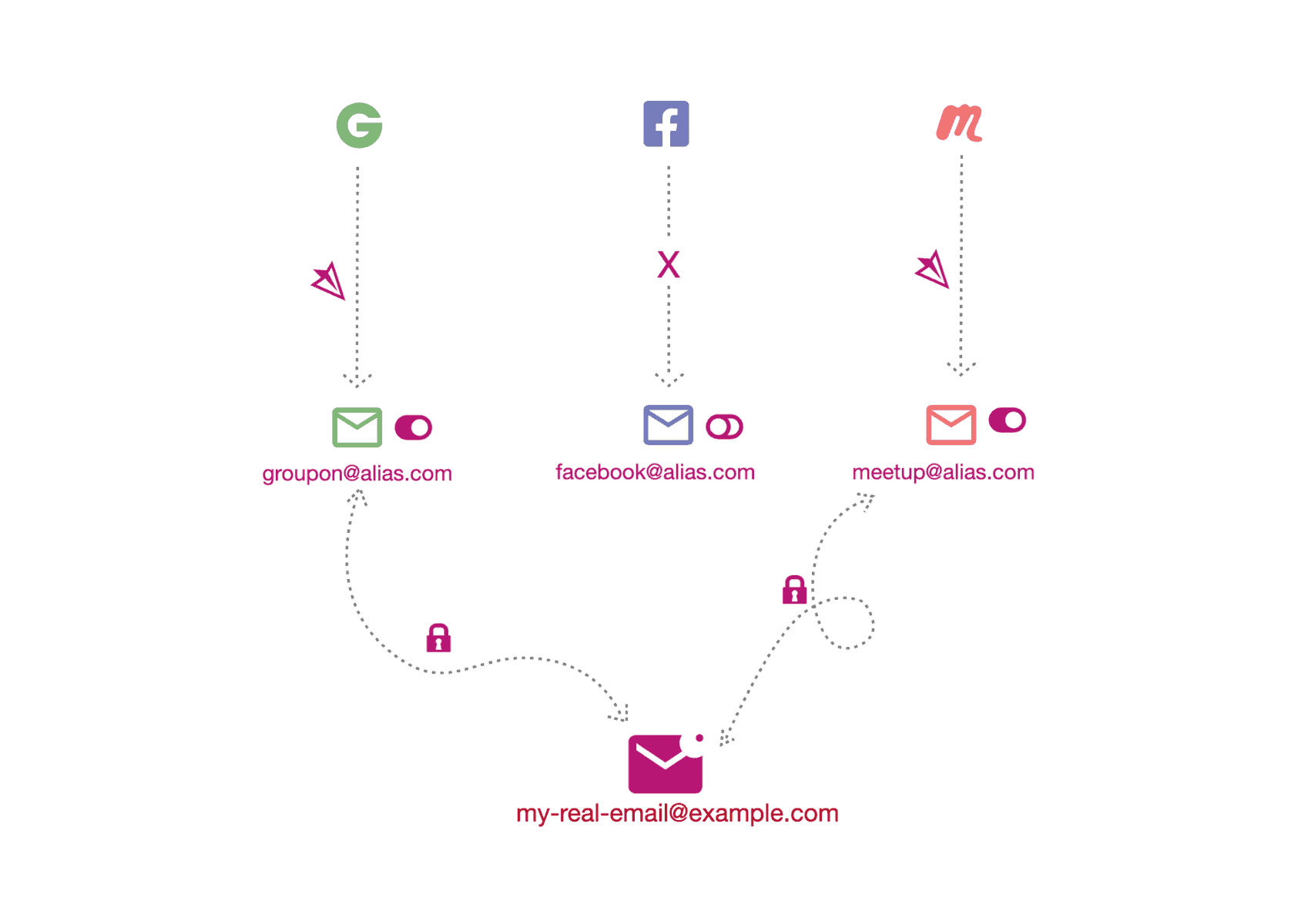
It's designed in a way to be compatible with any email client. And messages addressed to my SimpleLogin aliases do arrive at Hey. However, SimpleLogin's advanced privacy protection creates a unique email sender for every thread. Which from Hey's perspective needs to be Screened, before moving further.
I like that SimpleLogin protects my email, but this flow creates unnecessary steps. Above, I emphasized that Hey's email flow is 10x better than traditional multi-column clients. Yet using SimpleLogin with Hey adds an overhead and slows me down.
How I solved the SimpleLogin Hey conflict?
Within about two years of using SimpleLogin, I created over 350 aliases with my custom domain. I thought that it'll help me manage my inbox better while protecting my privacy. Only through Hey did I grasp the significance of email flow.
Once I understood that, I considered screening each email relayed by SimpleLogin. But that's too time-consuming. I thought about going through the 350+ list and manually changing my email address on each platform, but that's even more laborious.
Ultimately, I:
- Exported the list of aliases from SimpleLogin.
- Set up a catch-all inbox with the custom domain on Zenbox (my web hosting).
- Added a few dedicated inboxes for important aliases on Zenbox.
- Changed the MX records in the DNS zone, removing the connection with SimpleLogin.
- Added forwarding from Zenbox to Hey.
- Configured sending via SMTP from Hey.
- Sent a few test messages to verify the new configuration.
I know that this approach meant migrating from SimpleLogin and all of its protections. Yet, I'm gaining much-needed uninterrupted email flow with Hey. And thanks to effective Hey's Screening I'm in better control of my inbox.
Short signature of 300 instead of 10 000 characters
Many email clients allow your signature to be up to 10 000 characters. Accommodating the lengthy legalize templates that are often attached to messages from accountants, lawyers, or government institutions.
While Hey's very flexible in terms of storage and email count, they're strict about the signatures. 37signals, creators of Hey, call it a Name Tag and believe that 300 characters is enough. From their perspective, lengthy signatures are annoying.
I agree with that, but I'm unsure if a 300-character limit is enough for organizations dealing with sensitive matters. It's fine in my digital nomad context. This limit is enough for my:
- valediction,
- contact details,
- tagline,
- website link,
- consulting call link,
- social media links.
No importing of old emails
This is the biggest deal breaker, underlined by everyone considering using Hey. DHH and Jason Fried, the co-founders of 37signals, had serious arguments about it, but eventually they followed DHH's vision of a fresh start.
While it might be some people's first instinct is to bring their entire email history with them wherever they switch to a new email service, we believe that's a major liability, and 99% of it is dead weight. HEY doesn’t import email from other services because we believe a fresh start is a blessing, not a curse. — Hey's documentation
After using Hey from May 2025, I'm sold on the unorthodox email flow. I love how much more efficient I am now. Yet, I'm still not sold on the idea that I can't import old emails.
I appreciate the extensive tutorial that's triggered with the first dozen emails arriving at Hey. But after I became accustomed to this new flow, there should be an option to import important messages. Let's dump years of unread newsletters or privacy policy update notifications from my previous inboxes. But I'd love to keep heartful messages I sent or received from my close circle.
Yes, it's still possible to forward a message from my previous email platform to Hey. Once Screened it lands in my Imbox, where I can mark it as seen. This represents the full extent of moving messages. The forwarding means the sender of the message is now my previous account, which can mess things up while searching for the message in the future. It's even more complicated for messages that I sent to someone, as Hey will see them as received and not sent out.
Therefore, for now, I follow the official Hey advice. They recommend exporting emails and keeping them locally in Apple Mail, Thunderbird, or another desktop email client. Since I like to access it on the move, I keep my archive at iCloud Mail, my previous operator. You can also keep it in Gmail or any other free email platform.
Once per month, I retrieve an older message. But it's not mission critical. Even if I don't find it, I'm able to locate relevant data somewhere else.
In short, I agree with DHH that 99% of archived emails is dead weight. So it's not a deal breaker that I can't import them. Still, I wish there were a built-in method to import the important messages.
Steep learning curve but with a proper contextual tutorial
Hey's not easy. The one-column view, screening, triaging, permanent attachments, among many other features I didn't cover here, sounds daunting. Heck, I respect if you reached this part of my article. Over 6000 words written here are emphasizing Hey's advantages. Yet, the best way to experience it, is to use Hey.
Superior tutorial design presents another motivation for switching. In recent years, I moved from Google Workspace to Proton Mail, and then to iCloud Mail. Yet every migration meant I needed to spend countless hours on research, testing, and debugging. The built-in tutorials were minimal and easy to skip.
The Hey team knows it needs to teach its users. The learning curve was steep, but I appreciated that each explanation was suited to my unique situation. Some demo messages invited me to their new UI, but once my messages started coming in, the tutorial bubbles showed up on top of them.
In Gmail, these pop-ups were nagging me: turn on Hangouts, now Chat, then Meet, enable this AI feature, enable that (silly) feature. But in Hey, they helped me use screening or triaging correctly. Once I completed them on my first dozen messages, pop-ups ceased.
What about AI in the email inbox?
Circling back to the sci-fi visions from the beginning of my article, I liked the concept from Her the movie. The main character was riding in a metro and talking to the AI without using a screen. His personal AI assistant was reporting about received messages, those marked as spam, and reading out loud the important ones.
As it's often the case, we have already achieved such sci-fi level of technological advancements. If you allow OpenClaw (aka Clawdbot or Moltbot) to access your inbox, then you can recreate the above scene from Her. What's stopping me and many others is the lack of proper security. Some people, who are expected to be more responsible, are mistakenly granting AI excessive access and having all emails deleted.
 Julie Bort
Even though DHH shares his experiences with AI tools, Hey's not introducing any AI features. And I'm fine with that. The productivity-enhancing email flow is excellent. An equivalent to Gmail's "Smart Replies" would be nice, as it speeds up addressing the sender or giving quick yes/no answers. But it's not a big deal, and Hey's team is eagerly responding to user feedback. So it's possible they'll introduce such a feature.
If you feel like Hey, isn't pioneering in AI email enhancements, then try Superhuman, Shortwave, or Notion Mail. I'm fine with Hey's current offering, and if I need some paraphrasing in my replies, I use LanguageTool or Perplexity.
No Hey calendar for me
It's a common thread among tech firms that once they start with one product, they soon expand into other categories like calendars, drives, etc. This happened with Gmail, Proton, and now Hey follows suit.
In general, I'm glad that 37signals is eager to disrupt established conventions. As explained in the beginning, email is a fundamental tool for any digital nomad. Therefore, I'm glad that with Hey I'm finally decreasing time spent in the inbox while increasing my productivity.
Yet, I don't have such potent feelings about my calendar app. Google Calendar was fine. Then I switched over to Apple Calendar, even while using Proton Mail. I remain with Apple Calendar, as it's a good enough tool, compatible with most platforms and used among my close circle.
Use a custom domain instead of accounts @hey.com
As always, you should only use Hey with your own domain. Do not create an email account @hey.com, or on any other platform so you won't depend on them. That's especially crucial once you decide to migrate your inbox.
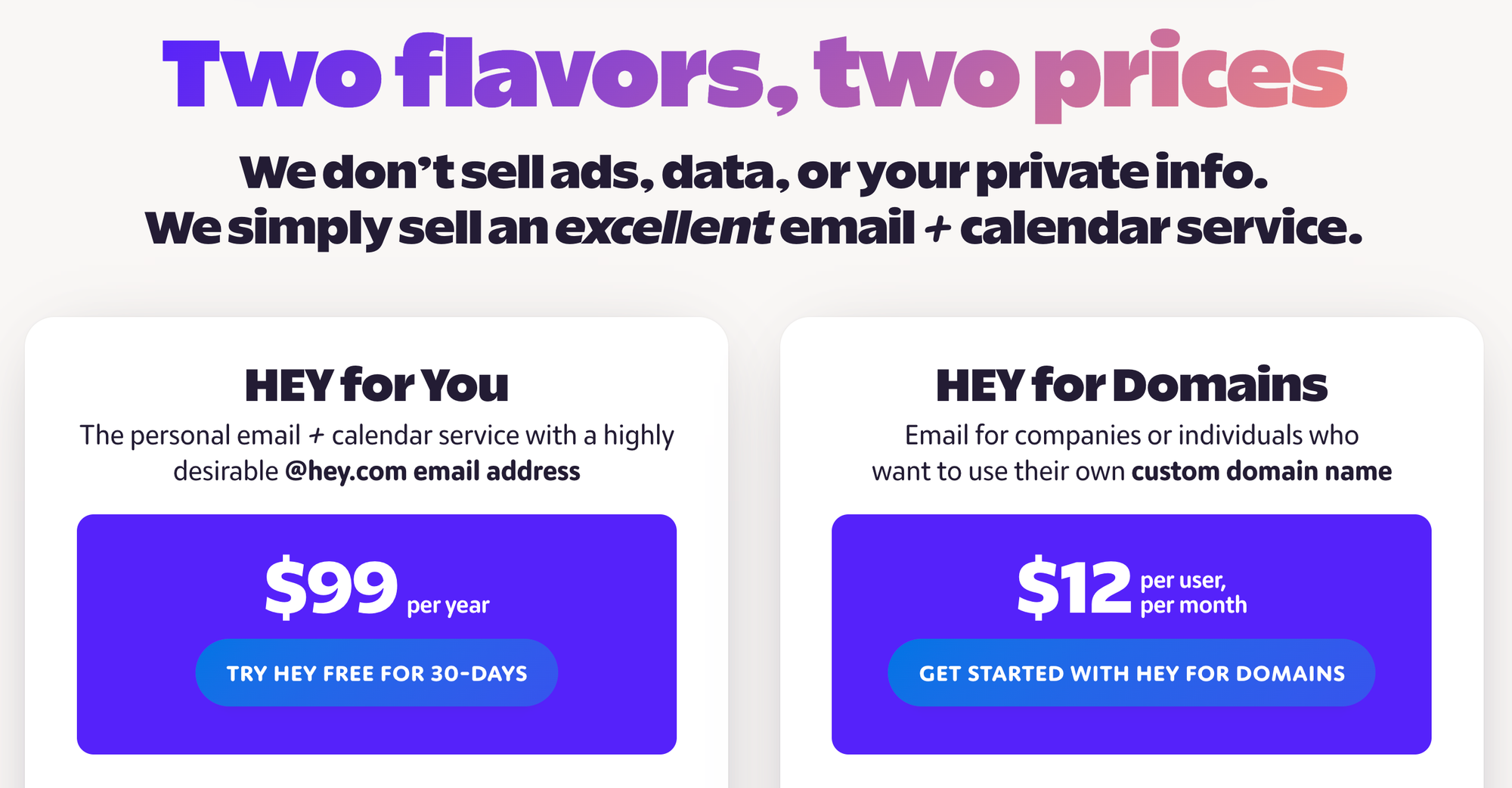
Moreover, Hey has a rigid pricing model. The "Hey for You" with the @hey.com email account costs 99 USD/year, and can't be paid monthly. The "Hey for Domains" costs 10 USD/month for the first user and 12 USD/month for the following users, and can't be paid annually.
Who's Hey for?
If you're like me and spent decades in the classic multi-column email client, then switching to Hey is a challenge. Still, you may have used Inbox by Gmail and felt its fresh breeze. That's where Hey excels. It's lightning-fast, one-column, truly mobile-friendly email app. Its carefully designed flow enables me to be 10 times more productive and stay on top of my Imbox. Without worrying about storage, attachment size, or the unread message counter. It's the best 10 USD spent on any email software.


Discussion